Filter guests according to the registration or check-in period
You can use target groups to filter guests who registered or checked in before or after a specific time.
To create a new target group, click on "Segments" in the event's side menu and select the "Target Groups" option.
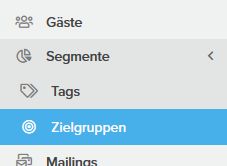
Then, in the event menu under "Target Group," click "Add Target Group"

.
- Create a new target group and select "Registration Time" or "Check-in Time" in the filter definitions.
- Time entries always require a time of day and define an exact moment: Select either "before" or "after" to filter the period accordingly.
- Now enter the desired time. The correct format for a time entry in target groups is: yyyy-mm-dd hh:mm
Related Articles
Change the registration status of guests in the guest list
Change Registration Status Not all guests use the option to register or cancel their attendance online via the event website. Here’s how you can manually change the status of one or more guests. The following registration statuses are available in ...
Working with segments: Tags and target groups
For many events, it will be necessary to divide guests into groups or categories. In Invitario, you are provided with two options, “Tags” and “Target groups”, for doing so. This will allow you to direct guests to different registration and ...
Segment guests with tags
Tags function like “labels” that you assign to specific guests. Multiple guests with the same “label” are automatically grouped into a segment. A guest can have one tag or multiple tags. Creating New Tags: When importing guests: Simply enter the ...
Manual registration of the accompanying person
The manual registration of companions is done via the "Guests" menu: Select the guest or guests to whom a companion should be added. Go to the end of the guest list and select "Register and add companion" from the "Choose action" dropdown, then click ...
Processing history of guests and contacts
Guest History In the detail view of each guest record (event level) or contact record (account level), the complete change history (log) can be viewed under the tab History. Every change in the record is displayed with the date and time, a ...